Android-03 Android Application Basics
On This Page
Anatomy of an Android Application
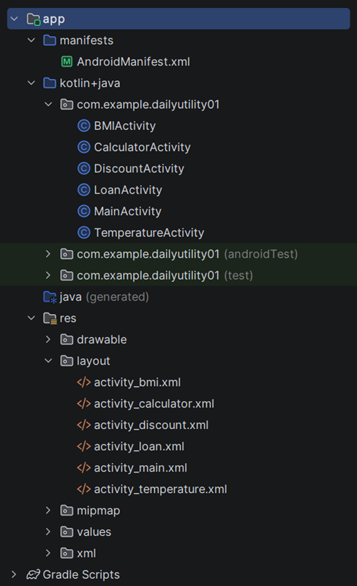
- The anatomy of an Android application refers to the structure and organization of files and folders in an Android project
- It helps developers understand how different components are arranged and how an app is built and executed
java (Source Code Folder)
- Contains the main source code of the application
- Includes Java or Kotlin files such as
MainActivity.java - Handles the logic and functionality of the application
res (Resources Folder)
- Contains all non-code resources used in the application
- Includes subfolders like:
layout→ XML files for UI design (activity_main.xml)drawable→ Images and graphicsvalues→ Strings, colors, styles
- Helps in designing UI and managing resources efficiently
manifests Folder
- Contains the
AndroidManifest.xmlfile - It is a mandatory configuration file for every Android app
- Declares application components such as activities, services, and permissions
- Provides essential information to the Android system about the app
Gradle Scripts
- Used for build and dependency management
- Defines project configuration, libraries, and SDK versions
- Helps in compiling and packaging the application
Activity
- Represents a single screen with user interface
- Acts as an entry point for user interaction
- Every Android application must have at least one activity
Resources and UI Components
- Includes layouts, strings, colors, and images
- Defines how the application looks and behaves
- Managed through XML files in the res folder
The Core Components of Android
- Android applications are built using core components that define the structure and behavior of the app
- These components help in handling user interaction, background processing, communication, and data management
Activity
- Activity represents a single screen with a user interface
- It is the main entry point for user interaction in an application
- Each activity is responsible for displaying UI and handling user actions
- Example: Login screen, Home screen
- Managed by Activity Lifecycle methods like
onCreate(),onStart(),onResume(), etc.
Service
- Service is a component that runs in the background without a user interface
- Used to perform long-running operations
- Continues running even when the user is not interacting with the app
- Example: Playing music, downloading data in background
- Improves application performance by handling tasks separately from UI
Broadcast Receiver
- Broadcast Receiver is used to respond to system-wide events or messages
- It listens for broadcast intents sent by the system or other applications
- Does not have a user interface
- Example: Battery low notification, incoming SMS alert
- Helps in handling global events efficiently
Content Provider
- Content Provider is used to manage and share application data between different applications
- Provides a standard interface to access structured data
- Data can be stored in databases, files, or other storage systems
- Example: Contacts, media files
- Ensures data security and controlled access using permissions
Intent
- In Android, components communicate with each other using Intents
- Intent is a fundamental concept used to start activities, services, or send messages between components
- It enables interaction within an application as well as between different applications
What is an Intent
- Intent is a messaging object used to request an action from another Android component
- It is used to start an Activity, Service, or Broadcast Receiver
- It acts as a bridge between different components
- It can carry data using key-value pairs (extras)
- It helps in navigation and communication within the app
Explicit Intent
- Explicit Intent is used to start a specific component by clearly specifying its class name
- It is mainly used within the same application
- The developer knows exactly which activity or service should be opened
- Provides direct and controlled communication between components
- Example of Explicit Intent
Intent intent = new Intent(this, SecondActivity.class);startActivity(intent);
Implicit Intent
- Implicit Intent is used when the target component is not specified
- The Android system automatically selects the appropriate component based on the action and data
- Used to perform common actions like opening a website, dialing a number, or sharing content
- Allows interaction with other applications
- Example of Implicit Intent
Intent intent = new Intent(Intent.ACTION_VIEW);intent.setData(Uri.parse("https://www.google.com"));startActivity(intent);
Android Manifest file
AndroidManifest.xmlis a core configuration file in every Android application- It provides essential information about the app to the Android system
- Without this file, an Android application cannot run
AndroidManifest.xmlis a mandatory file that defines the structure and components of an Android app- It tells the system about app components, permissions, and other configurations
- The Android system reads this file before launching the application
Important Elements of Android Manifest File
-
<manifest>- Root element of the manifest file
- Contains package name and basic information about the application
- All other elements are included inside this tag
-
<application>- Defines application-level information
- Includes app name, icon, theme, and other properties
- Contains declarations of activities, services, and other components
-
<activity>- Declares an activity (screen) in the application
- Each activity must be defined in the manifest file
- Can include intent filters to specify how it is launched
-
<intent-filter>- Specifies the type of intents that the component can respond to
- Used to define actions like MAIN and categories like LAUNCHER
- Helps in launching the app from the home screen
-
<service>- Declares a service component that runs in the background
- Used for long-running operations without UI
-
<receiver>- Declares a Broadcast Receiver
- Used to handle system-wide or app-wide events
-
<provider>- Declares a Content Provider
- Used to manage and share data between applications
-
<uses-permission>- Specifies permissions required by the application
- Example: Internet access, camera, storage
- Ensures security and controlled access to device features
Resource Management in Android
- Resource management in Android refers to organizing and managing non-code elements used in an application
- Resources are stored in the res folder and help in designing UI and maintaining consistency
- It improves reusability, maintainability, and localization of the application
String Resources
- Stored in strings.xml file inside res/values folder
- Used to define text values instead of hardcoding in code
- Helps in easy modification and localization (multi-language support)
- Example:
MyApp - Used in
layout: android:text="@string/app_name"
Color Resources
- Stored in colors.xml file inside res/values folder
- Used to define color values for UI elements
- Helps maintain consistent color theme across the app
- Example:
<color name="primary">#6200EE</color>- Used in
layout: android:textColor="@color/primary"
Image Resources
- Stored in res/drawable folder
- Includes images like PNG, JPG, SVG, etc.
- Used for icons, backgrounds, and graphics
- Example:
android:src="@drawable/logo"
Layout Resources
- Stored in res/layout folder as XML files
- Defines the structure and design of the user interface
- Contains UI components like TextView, Button, EditText, etc.
- Example:
<LinearLayout><TextView android:text="Hello"/></LinearLayout>
XML Resources
- XML is used to define various configurations and UI elements
- Includes layout files, animation files, styles, and menus
- Stored in different folders inside res (layout, anim, menu, values, etc.)
- Helps separate design from code and improves readability
Questions
- Define Android Application.
- What is an Activity in Android?
- What is a Fragment?
- Define Intent in Android.
- What is Android Manifest file?
- Explain components of Android Application.
- Explain explicit and implicit intents with example.
- Explain Services and Broadcast Receivers in Android.
- Explain the role of Manifest file in Android Application.
- Explain different types of resources in Android.