Android-04 Android UI Design Essentials and Fragments
On This Page
Android UI Elements
- UI elements are components that the user can see and interact with on the screen
- They help users to input data, view information, and perform actions in an application
- These elements are essential for designing user-friendly Android applications
TextView
TextViewis used to display text to the user- User cannot edit the text
- Used for showing labels, headings, or messages
<TextView android:text="Welcome Student"/>EditText
EditTextis used to take input from the user- User can type text in this field
- Commonly used in forms like login and registration
<EditText android:hint="Enter your name"/>Button
Buttonis used to perform an action when clicked- Used to submit data or navigate to another screen
<Button android:text="Submit"/>Spinner
Spinneris a dropdown list used to select one option from multiple options- Saves space and provides a simple selection interface
<Spinner/>CheckBox
CheckBoxis used to select multiple options- It has two states:
checkedandunchecked
<CheckBox android:text="I Agree"/>RadioButton
RadioButtonis used to select only one option from multiple options- Usually placed inside a
RadioGroup - Selecting one option automatically deselects others
<RadioGroup>
<RadioButton android:text="Male"/>
<RadioButton android:text="Female"/>
</RadioGroup>ScrollView
ScrollViewis used to scroll screen up and down.- It is useful when content is larger than screen size.
- Example is registration form with many fields
Switch
Switchis needed when only two options are available.- It helps users quickly turn features
ONorOFF. It improves user experience and makes the app easy to use. - It clearly shows the current state of the feature.
- Example: Mobile Data
ON/OFF.
<Switch
android:id="@+id/switch1"
android:layout_width="wrap_content"
android:layout_height="wrap_content"
android:text="WiFi"/>DatePicker
DatePickeris used to select date.- It shows a calendar interface.
- User can select day, month, and year.
- It makes date selection easy.
- Example: Date of Birth.
TimePicker
TimePickeris used to select time.- It shows clock interface.
- User can select hour and minute.
- Example: Alarm Time.
ProgressBar
- A
ProgressBaris used to show the progress of a task. - It gives feedback to user that some process is running.
- Used in: File downloading, App installation, Loading data from internet
- Without
ProgressBar→ user thinks app is frozen - With
ProgressBar→ user sees progress - Types of
ProgressBar:- Determinate
- Shows exact progress (0–100%)
- Example: 70% download complete
- Indeterminate
- Shows loading animation
- Used when progress is unknown
- Determinate
SeekBar
- A
SeekBaris a slider used to select a value by dragging. - It is interactive (user controlled)
- Used in: Volume control, Brightness control, Media player
- Features:
- Has minimum and maximum value
- User drags slider left/right
- App receives updated value
- Example: Volume = 80%
RatingBar
- A
RatingBarallows users to give ratings using stars. - Helps collect feedback from users.
- Used in: Apps, Movies, Products
- Features:
- Shows stars (usually 5)
- Supports half-star ratings
- Interactive
- Example:
★★★★☆- Used in e-commerce apps
Chronmeter
- A
Chronometeris a timer used to measure elapsed time. - Works like a stopwatch.
- Used in: Fitness apps, Games, Time tracking
- Features:
- Starts counting from 0
- Uses system clock
- Can be stopped/reset
- Example:
00:00 → 00:30 → 01:00
Android Layouts
- Layouts in Android define how UI elements are arranged on the screen
- They control position, alignment, and spacing of components
- Different layouts are used based on design requirements
Linear Layout
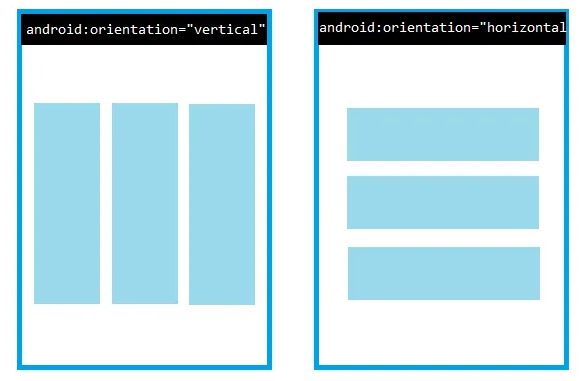
- Arranges UI elements in a single direction (vertical or horizontal)
Vertical→ elements in a columnHorizontal→ elements in a row- Supports weight property to divide space
- Simple and most commonly used layout
Relative Layout
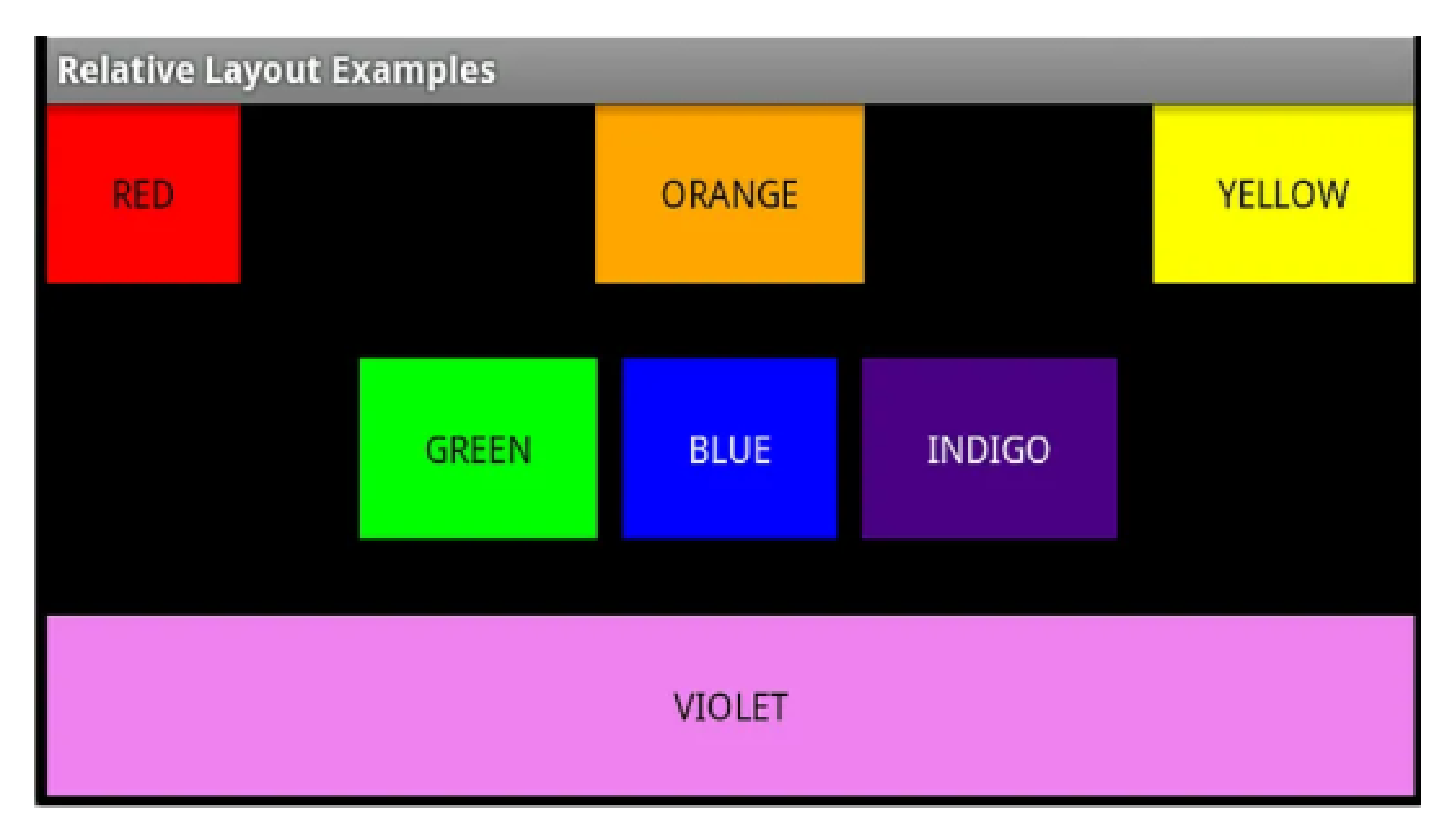
- Positions UI elements relative to each other or to the parent layout
- Allows flexible positioning like below, above, left, or right of another view
- Example: Button below a
TextView - More flexible than Linear Layout
Frame Layout
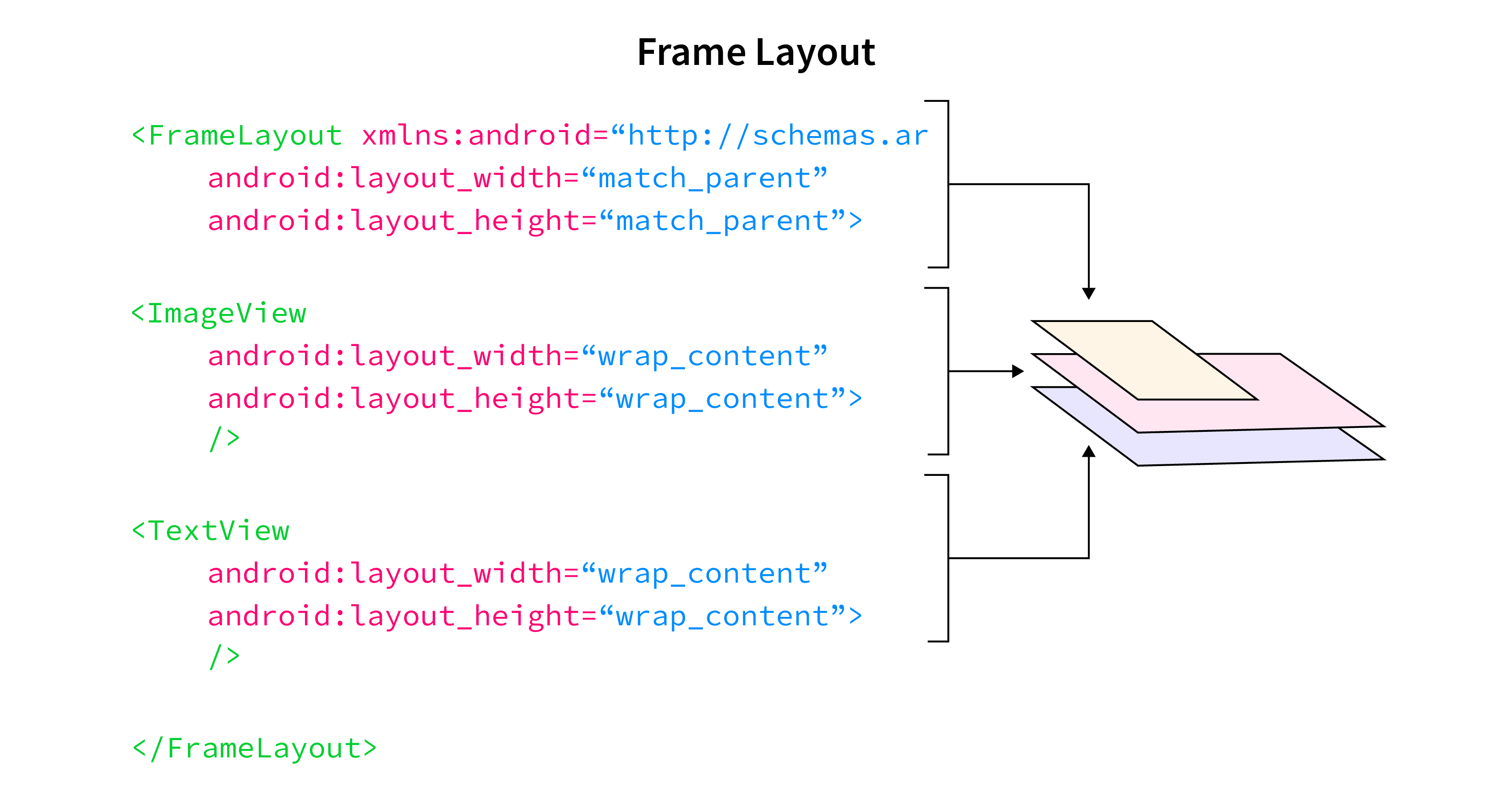
- Simple layout used to display one element at a time
- Multiple elements can be stacked on top of each other
- Used for fragments and overlays
- Example: Image with text on top
Table Layout
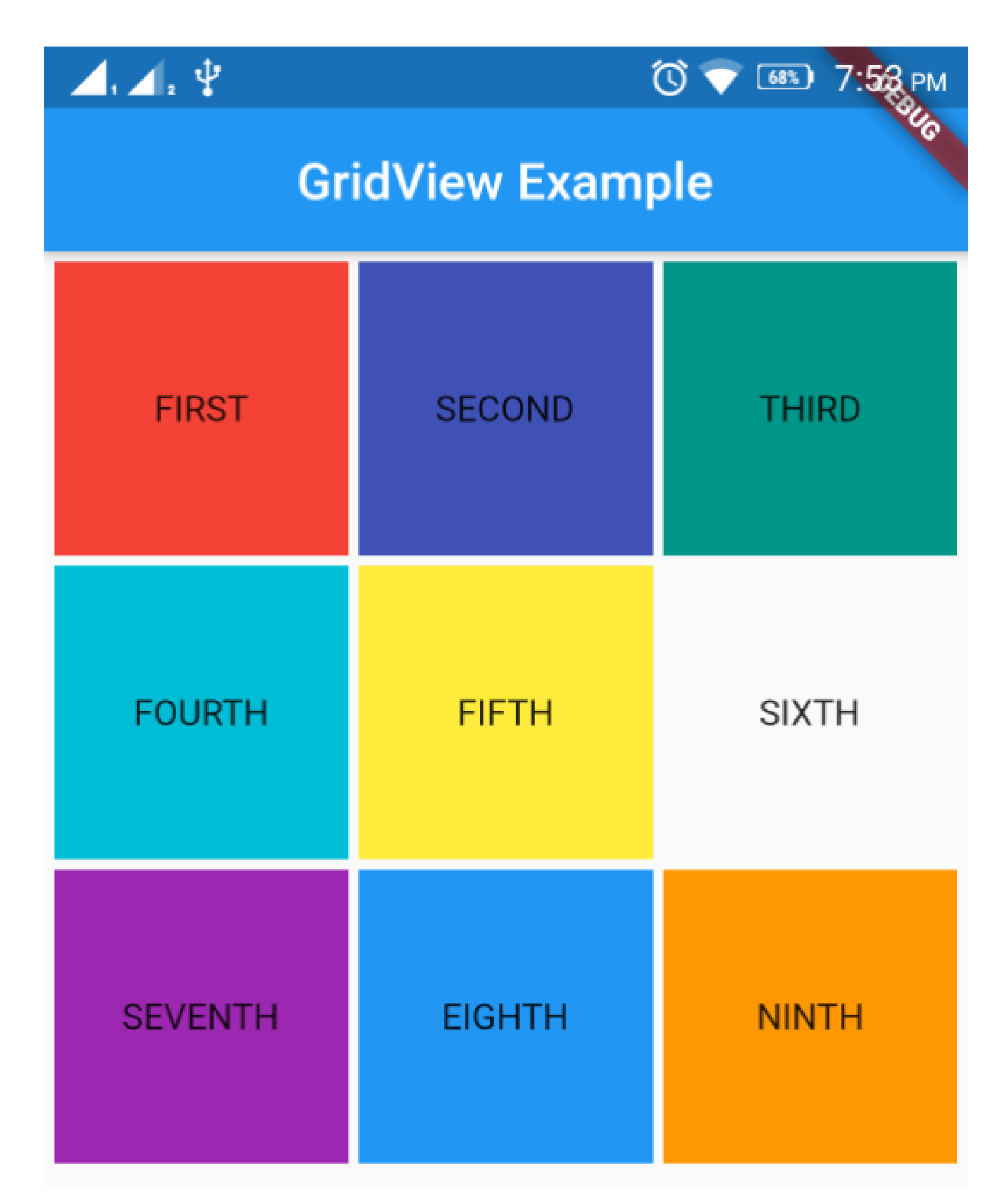
- Arranges elements in rows and columns like a table
- Uses
TableRowto define each row - Suitable for structured data like forms
- Example: Student data table
Grid Layout
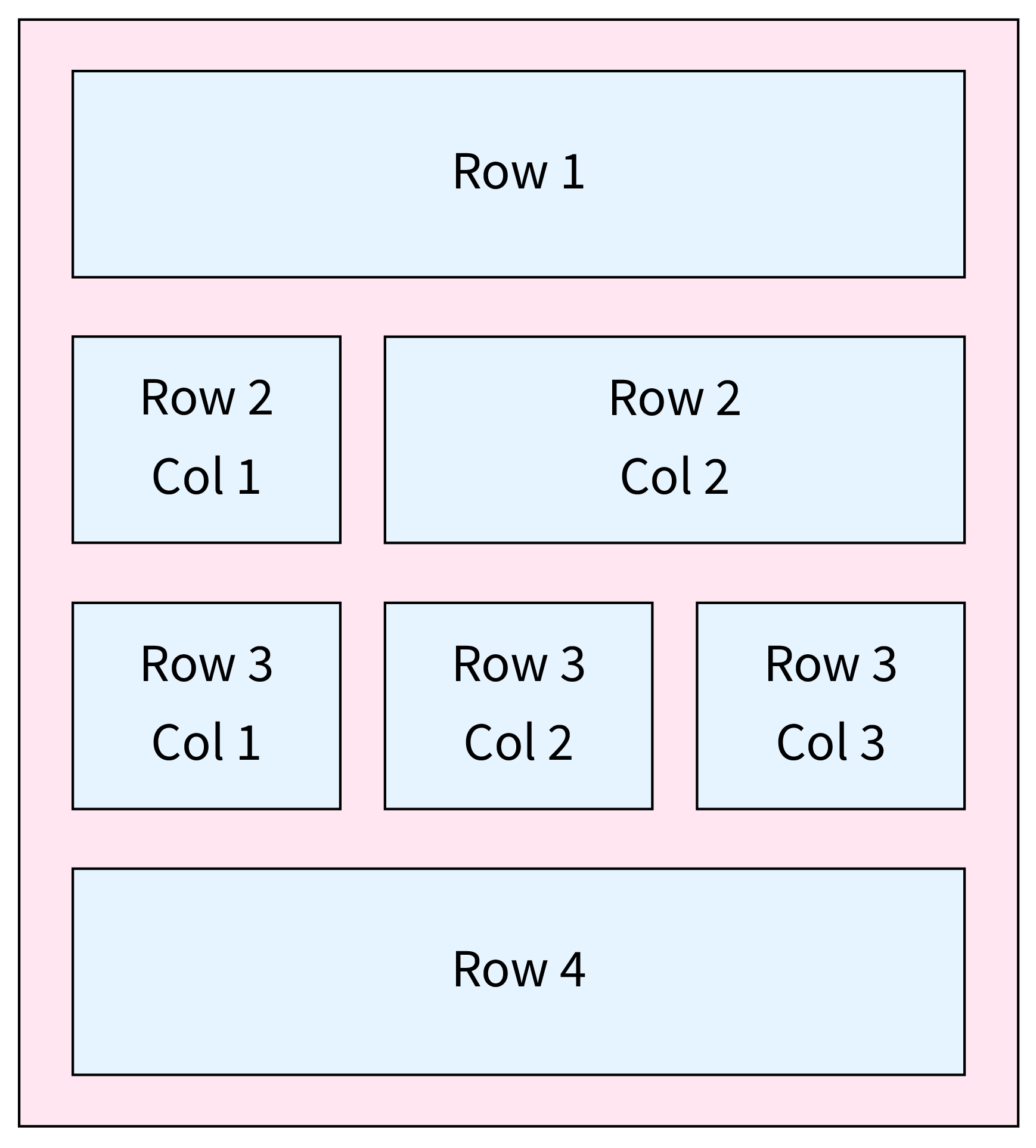
- Arranges elements in a grid of rows and columns
- Provides equal spacing and better control over placement
- More flexible than Table Layout
- Used in apps like calculator or image gallery
Fragment
- A Fragment is a reusable and modular section of a user interface in an Android Activity. It represents a behavior or a portion of UI within an Activity.
- Introduced in Android 3.0 (Honeycomb)
- A Fragment must always be hosted inside an Activity
- It has its own lifecycle, but it is dependent on the Activity lifecycle
-
Features
- Modular and reusable UI component
- Has its own lifecycle
- Can be added, removed, or replaced dynamically
- Can be combined to create multi-pane layouts
- Supports interaction with its parent Activity
-
Fragment Lifecycle
- The Fragment lifecycle is closely related to the Activity lifecycle.
onAttach()– Fragment is attached to ActivityonCreate()– Initialize fragmentonCreateView()– Inflate layoutonViewCreated()– View is createdonStart()– Fragment becomes visibleonResume()– Fragment is activeonPause()– Fragment pausedonStop()– Fragment stoppedonDestroyView()– View destroyedonDestroy()– Fragment destroyedonDetach()– Fragment detached from Activity
-
Advantages
- Reusability – Can be reused in multiple Activities
- Modular Design – Break UI into smaller parts
- Dynamic UI Handling – Add/remove fragments at runtime
- Better for Large Screens – Supports multi-pane layouts
- Separation of Concerns – Improves code organization
-
Disadvantages
- Slightly complex lifecycle
- Tight coupling with Activity
- More boilerplate code
- Fragment management can be tricky in large apps
Android Support Package for Fragments
-
The Android Support Package for Fragments provides a way to use Fragments on older Android versions (before Android 3.0).
-
Although Fragments were introduced in Android 3.0 (API level 11), many devices ran older versions. The support package allows developers to use Fragments consistently across all versions.
-
The Fragment Support Package is part of the Android Support Libraries that provides backward-compatible Fragment APIs for older Android devices.
-
Key Classes in Support Package
- Fragment: Base class for creating fragments
- FragmentActivity: Activity class that supports fragments (older approach)
- AppCompatActivity: Modern replacement of FragmentActivity
- FragmentManager: Manages fragment operations
- FragmentTransaction: Handles add, remove, replace operations
- Example
import androidx.fragment.app.Fragment;
import androidx.appcompat.app.AppCompatActivity;
public class MainActivity extends AppCompatActivity {
}Questions
- Define
TextViewandEditTextin Android. - What is
SpinnerandRadioButton? - Define
ProgressBarandSeekBar. - What is
LinearLayout? - What is Fragment in Android?
- Explain different types of Layouts in Android
- Explain the use of
CheckBox, Switch andRadioButtonwith example. - Explain
DatePickerandTimePickerin Android. - Explain the concept and lifecycle of Fragment.
- Explain Android Support Package for Fragments.