DVBI-02 Power BI Desktop & Data Transformation
On This Page
Data Transformation in Power BI
- Data transformation is the process of converting raw data into a clean, structured, and usable format using Power Query Editor.
- It helps in improving data quality and preparing data for accurate analysis and reporting.
- Users can split columns, merge columns, pivot and unpivot data, filter rows, sort values, and group data.
- All transformations are recorded as applied steps, which can be reused automatically during data refresh.
1. Importing Data
- The process starts by importing data from sources such as Excel, CSV files, databases, web, or cloud services.
- After selecting the data source, users choose the Transform Data option to open Power Query Editor.
2. Data Cleaning
- Data cleaning ensures that the dataset is accurate and consistent before analysis.
- It includes removing unnecessary rows and columns, handling missing values, removing duplicates, and correcting data types.
- Columns can also be renamed for better understanding.
3. Data Transformation (Shaping Data)
- Data shaping involves modifying the structure of the data to make it suitable for analysis.
- Users can split columns, merge columns, pivot and unpivot data, filter rows, sort values, and group data.
- These operations help in organizing data in a meaningful way.
4. Handling Data Issues
- Power Query provides methods to handle common data problems.
- Missing values can be filled or removed, duplicate records can be eliminated, and outliers can be identified and adjusted.
- This improves the reliability of the dataset.
5. Applied Steps
- Every transformation performed is recorded as an Applied Step in Power Query Editor.
- These steps are saved and automatically applied whenever the data is refreshed.
6. Loading Data
- After completing all transformations, users click Close & Apply to load the cleaned data into Power BI.
- The transformed data is then ready for modelling and visualization.
Data Transformation Techniques in Power BI
- Data transformation is the process of modifying raw data into a structured and analysis-ready format using Power Query Editor.
- It involves applying various techniques to clean, shape, and organize data effectively.
1. Filtering Data
- Filtering is used to select only relevant rows based on conditions.
- Example: Showing only students with marks greater than 50.
2. Sorting Data
- Sorting arranges data in ascending or descending order.
- Example: Sorting sales data from highest to lowest revenue.
3. Splitting Columns
- A single column can be divided into multiple columns based on a delimiter or position.
- Example: Splitting “Full Name” into “First Name” and “Last Name”.
4. Merging Columns
- Two or more columns can be combined into one column.
- Example: Combining “City” and “State” into a single “Location” column.
5. Pivoting Data
- Pivoting converts rows into columns for better analysis.
- Example: Converting monthly sales data from rows into separate columns for each month.
6. Unpivoting Data
- Unpivoting converts columns into rows.
- Example: Converting multiple subject columns into a single “Subject” column with marks.
7. Grouping Data (Group By)
- Grouping aggregates data based on a category.
- Example: Calculating total sales for each region.
8. Replacing Values
- Specific values in a dataset can be replaced with new values.
- Example: Replacing “N/A” with 0.
9. Changing Data Types
- Data types such as text, number, or date can be modified.
- Example: Converting a text field into date format for proper analysis.
10. Removing Duplicates
- Duplicate records can be removed to maintain data accuracy.
- Example: Removing repeated customer entries from a dataset.
Data Cleaning in Power BI
- Data cleaning is the process of removing errors and inconsistencies from raw data to improve its quality.
- It is performed using Power Query Editor before analysis.
- Common cleaning tasks include removing unnecessary rows and columns, handling missing values, removing duplicate records, and correcting data types.
- Columns can also be renamed and formatted properly to make data more understandable and consistent.
1. Handling Missing Values
- Missing values (null values) can affect calculations and analysis results.
- Power BI provides multiple methods to handle them:
- Replace null values with zero, average, or a custom value
- Remove rows or columns containing missing values
- Use Fill Down or Fill Up options to fill values based on nearby data
- These techniques help in making the dataset complete and usable.
2. Handling Duplicate Data
- Duplicate records can lead to incorrect analysis and misleading results.
- Methods to handle duplicates include:
- Using the Remove Duplicates option on selected columns
- Identifying duplicates using grouping and counting techniques
- Keeping only unique records for accurate analysis
- Removing duplicates improves data consistency and reliability.
3. Handling Outliers
- Outliers are extreme or abnormal values that differ significantly from other data points.
- They can distort analysis and affect results.
- Methods to handle outliers include:
- Identifying outliers using filters or sorting data
- Removing extreme values that are not relevant
- Replacing outliers with average or median values
- Analyzing outliers separately if they provide useful insights
- Proper handling of outliers ensures more accurate and meaningful analysis.
Describe Steps to Remove Duplicates & Outliers.
Removing Duplicates in Power BI
- Duplicate records can lead to incorrect analysis and must be removed to ensure data accuracy.
Steps to Remove Duplicates
- Open Power BI Desktop and load the dataset
- Click on Transform Data to open Power Query Editor
- Select the column(s) where duplicates exist
- Go to the Home tab and click on Remove Duplicates
- Power BI keeps the first occurrence and removes repeated values
- Verify the cleaned data and apply changes
Handling Outliers in Power BI
- Outliers are extreme or abnormal values that can affect analysis results.
Steps to Handle Outliers
- Open Power Query Editor after loading data
- Identify outliers by sorting or applying filters on the column
- Detect unusually high or low values compared to normal data
- Remove outliers by filtering them out or deleting those rows
- Alternatively, replace outliers with average or median values
- Review the dataset to ensure consistency and accuracy
Data Modelling in Power BI
- Data modelling in Power BI is the process of organizing and structuring data by creating relationships between different tables.
- It defines how data from multiple sources is connected, allowing users to analyze and visualize data effectively.
- Data modelling is mainly performed using Power Pivot, where relationships, calculations, and data structures are created.
Importance of Data modelling in Power BI
1. Improves Performance
- Proper data modelling optimizes how data is stored and processed.
- It reduces data redundancy and improves the speed of queries and reports.
2. Enables Accurate Calculations
- Relationships between tables ensure correct calculations and aggregations.
- It helps in generating accurate measures such as totals, averages, and percentages.
3. Simplifies Data Analysis
- A well-structured data model makes it easier to understand and analyze data.
- Users can easily create reports without dealing with complex data structures.
4. Supports Complex Analysis
- Data modelling allows combining data from multiple tables for deeper insights.
- It enables advanced analysis using DAX functions and calculations.
5. Better Data Organization
- It organizes data into fact and dimension tables, making it more structured and logical.
- This improves clarity and usability of data.
6. Enhances Report Design
- A good data model simplifies report creation and improves visualization quality.
- It allows users to create meaningful dashboards efficiently.
Star Schema
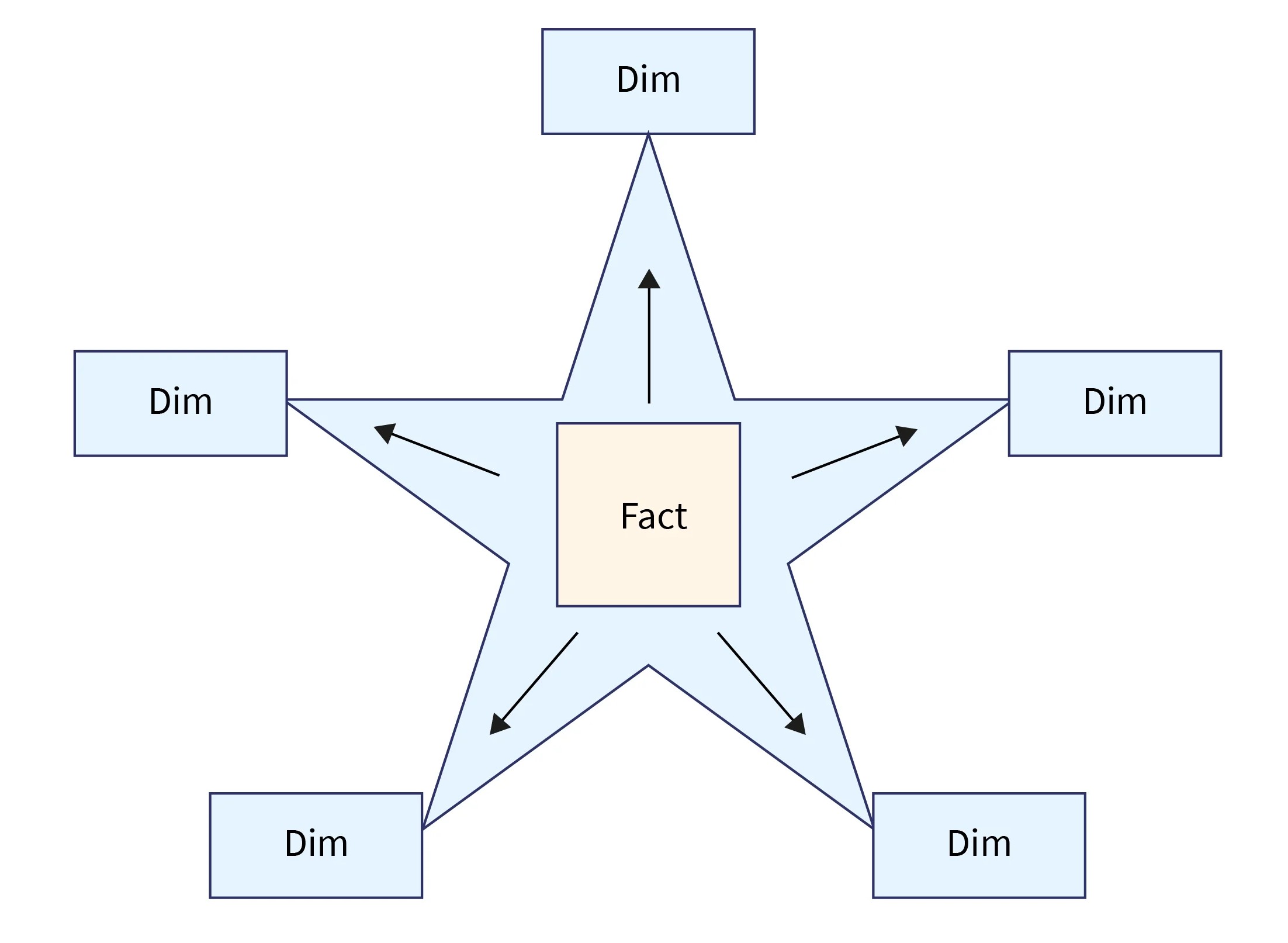
- Star schema is a data modelling technique where a central Fact table is connected directly to multiple Dimension tables.
- The fact table contains measurable data such as sales, quantity, or revenue, while dimension tables contain descriptive data like product, customer, date, and region.
- The structure is simple and widely used in data warehousing and Power BI.
Characteristics of Star Schema
- Simple and easy to understand
- Fewer joins between tables
- Denormalized structure (data may be repeated)
- Faster query performance
Advantages
- Easy to design and implement
- Provides fast data retrieval and analysis
- Suitable for reporting and dashboard creation
- Recommended for Power BI
Snowflake Schema
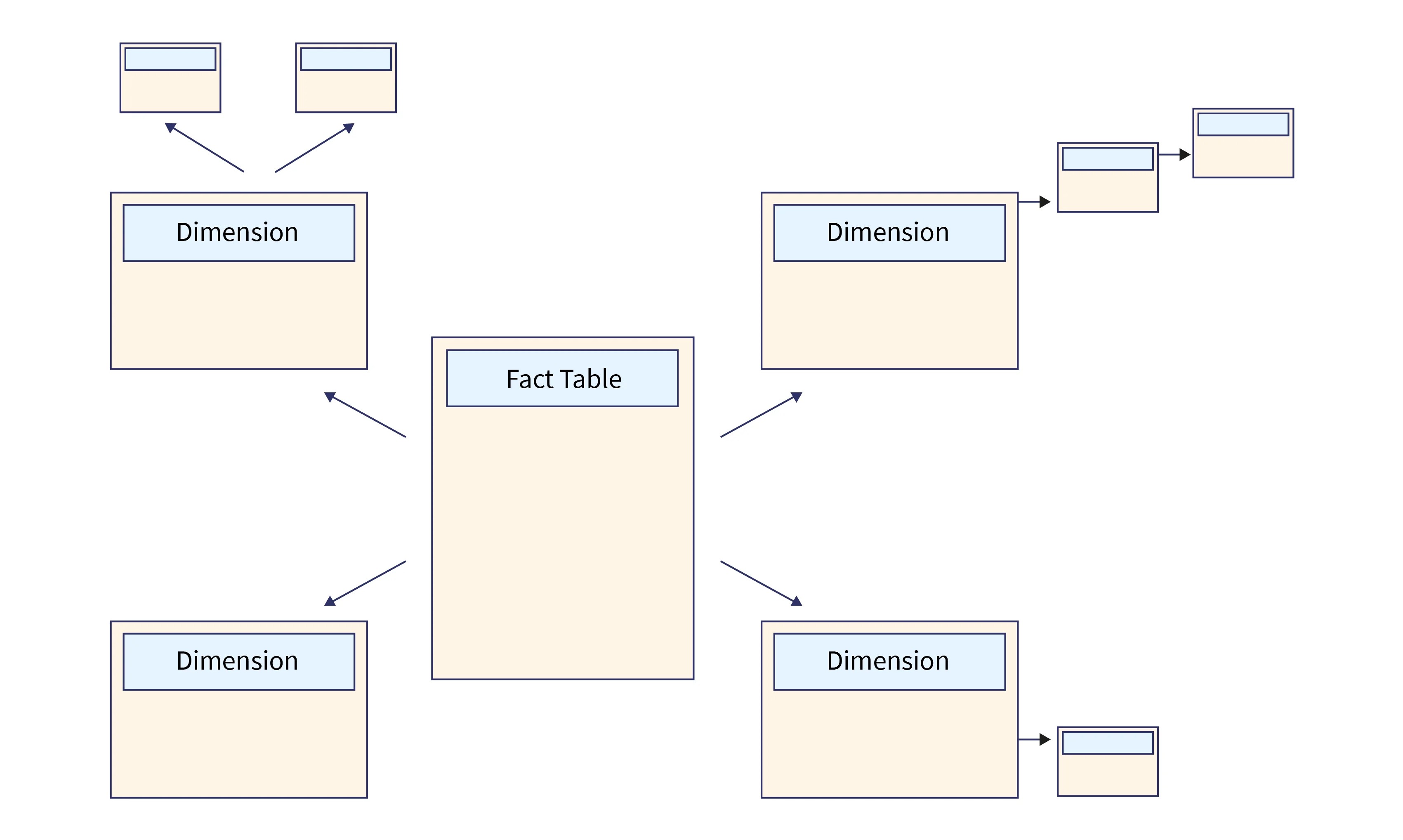
- Snowflake schema is a data modelling technique where dimension tables are further divided into multiple related tables.
- It follows a normalized structure, reducing data redundancy by splitting data into smaller tables.
- This makes the schema more complex compared to star schema.
Characteristics of Snowflake Schema
- Complex and normalized structure
- More tables and more joins
- Reduced data redundancy
- Slower query performance
Advantages
- Reduces duplication of data
- Saves storage space
- Improves data consistency and integrity
Disadvantages
- Difficult to design and understand
- Requires more joins, which can slow down performance
- Not preferred for quick analysis in Power BI
Differentiate: Star Schema & Snowflake Schema
| Feature | Star Schema | Snowflake Schema |
|---|---|---|
| Structure | In Star Schema, a central fact table is directly connected to multiple dimension tables without further division. | In Snowflake Schema, dimension tables are further divided into multiple related sub-tables to reduce redundancy. |
| Design Type | It follows a denormalized structure where data may be repeated in dimension tables. | It follows a normalized structure where data is organized into multiple smaller tables. |
| Complexity | The design is simple and easy to understand for users and developers. | The design is complex and requires better understanding of relationships between tables. |
| Joins | It requires fewer joins between tables, which improves query performance. | It requires more joins due to multiple related tables, which can slow down performance. |
| Performance | It provides faster data retrieval and is suitable for reporting and analysis. | It provides slower performance compared to star schema due to complex joins. |
| Data Redundancy | It contains higher data redundancy because data is repeated in dimension tables. | It reduces redundancy by organizing data into separate tables. |
| Storage | It consumes more storage space because of repeated data. | It saves storage space by minimizing duplication. |
| Usage in Power BI | It is widely used and recommended in Power BI for better performance and simplicity. | It is less preferred in Power BI because of its complexity and lower performance. |
Power BI Desktop Views & Their Functions
- Power BI Desktop provides three main views that help users work with data, create reports, and manage relationships effectively.
- Each view has a specific purpose in the data analysis and reporting process.
1. Report View
- Report View is used to create visualizations and design dashboards.
- Users can add charts, tables, graphs, slicers, and other visual elements.
- It allows interactive analysis using filters, drill-down, and highlighting features.
- This is the main view used for presenting insights.
2. Data View
- Data View displays the dataset in tabular format.
- Users can inspect data, verify cleaned data, and understand its structure.
- It is used to create calculated columns and measures using DAX.
- This view helps in checking data accuracy before visualization.
3. Model View
- Model View is used to manage relationships between different tables.
- It shows a diagram of how tables are connected.
- Users can create, edit, or delete relationships and adjust properties like cardinality and filter direction.
- It helps in building an efficient data model for analysis.
Data Management in Power BI
- Data management in Power BI involves organizing, cleaning, and maintaining data to ensure it is accurate and ready for analysis.
- It is mainly performed using Power Query Editor and Data View.
Key Aspects of Data Management
- Importing data from multiple sources such as Excel, databases, and cloud services
- Cleaning data by removing duplicates, handling missing values, and correcting data types
- Transforming data by filtering, sorting, merging, and reshaping datasets
- Organizing data into tables for better structure and usability
- Ensuring data consistency and quality for reliable analysis
Data Relationship in Power BI
- Data relationships in Power BI define how different tables are connected using common fields (keys).
- They allow data from multiple tables to be combined and analyzed together in reports and dashboards.
- Relationships are created in Model View or using the Manage Relationships option.
Purpose of Data Relationships
- To connect tables and enable data interaction
- To perform accurate calculations across multiple tables
- To support filtering and aggregation in reports
Types of Relationships
1. One-to-One (1 : 1)
- Each record in one table is related to exactly one record in another table.
- Example: One employee linked to one employee ID record.
2. One-to-Many (1 : * )
- One record in a table is related to multiple records in another table.
- Example: One customer can have multiple orders.
- This is the most commonly used relationship.
3. Many-to-Many ( _ : _ )
- Multiple records in one table are related to multiple records in another table.
- Example: Students and courses (a student can take many courses, and a course can have many students).
Key Properties of Relationships
1. Cardinality
- Defines the type of relationship between tables (1:1, 1:_, _:*).
2. Cross Filter Direction
- Determines how filters are applied between related tables (single or both directions).
3. Active and Inactive Relationships
- Active relationships are used by default in analysis.
- Inactive relationships can be activated when needed using DAX functions.
Importance of Data Relationships
- Enables combining data from multiple tables
- Ensures accurate analysis and reporting
- Improves data model efficiency
- Helps create meaningful visualizations
Relationship Creation in Power BI
- Relationship creation is the process of connecting different tables based on common fields (keys).
- It allows data from multiple tables to be used together in analysis and reporting.
Steps to Create Relationships
- Go to Model View in Power BI Desktop
- Identify common columns (such as ID, Customer ID, Product ID)
- Drag and drop one column onto another to create a relationship
- Alternatively, use the Manage Relationships option
Types of Relationships
- One-to-One ( 1 : 1 ): Each record in one table is related to one record in another table
- One-to-Many ( 1 : * ): One record in a table is related to multiple records in another table
- Many-to-Many ( _ : _ ): Multiple records in both tables are related to each other
Relationship Properties
- Cardinality: Defines the type of relationship (1:1, 1:_ , _ : * )
- Cross Filter Direction: Controls how filters are applied between tables
- Active/Inactive Relationship: Determines whether the relationship is currently used in analysis
- Proper relationship creation ensures accurate calculations, better data analysis, and efficient report generation.
The Process of Data Modelling in Power BI
- Data modelling is the process of organizing data and creating relationships between tables to enable effective analysis.
- It is performed after data is cleaned and transformed.
1. Loading Data
- After cleaning and transformation, data is loaded into Power BI using Close & Apply.
- The data becomes available in Data View and Model View.
2. Creating Relationships
- Tables are connected using common fields such as IDs or keys.
- Relationships are created in Model View by dragging one column to another.
3. Defining Relationship Types
- Relationships are defined as one-to-one, one-to-many, or many-to-many based on data structure.
- Proper relationship type ensures accurate data linking.
4. Setting Relationship Properties
- Properties such as cardinality and cross-filter direction are configured.
- Active and inactive relationships are managed for correct analysis.
5. Organizing Data Model
- Tables are structured into fact and dimension tables.
- A proper schema (like star schema) is used for better performance.
6. Creating Calculations
- Measures and calculated columns are created using DAX.
- These calculations help in advanced analysis and reporting.